 Qkeep
IPHONE & IPAD
Your Qkeep wallet, on your Home Screen
Qkeep has no App Store app. On iPhone and iPad, open wallet.qkeep.app in Safari and add it to your Home Screen. It opens full screen like an app, with your keys encrypted on the device.
Before you start
If you already have a wallet, keep your recovery phrase backup to hand. Installing the Home Screen app does not copy your Safari wallet into it. Set up or restore the wallet after opening the new icon.
Seven steps to install
Safari controls are illustrated; wallet screens show Qkeep with demo data. The flow covers iOS 27 and iOS 26. Your layout may vary.
Open Qkeep in Safari
Open Safari and visit wallet.qkeep.app. Check the address before you enter any recovery phrase or password.
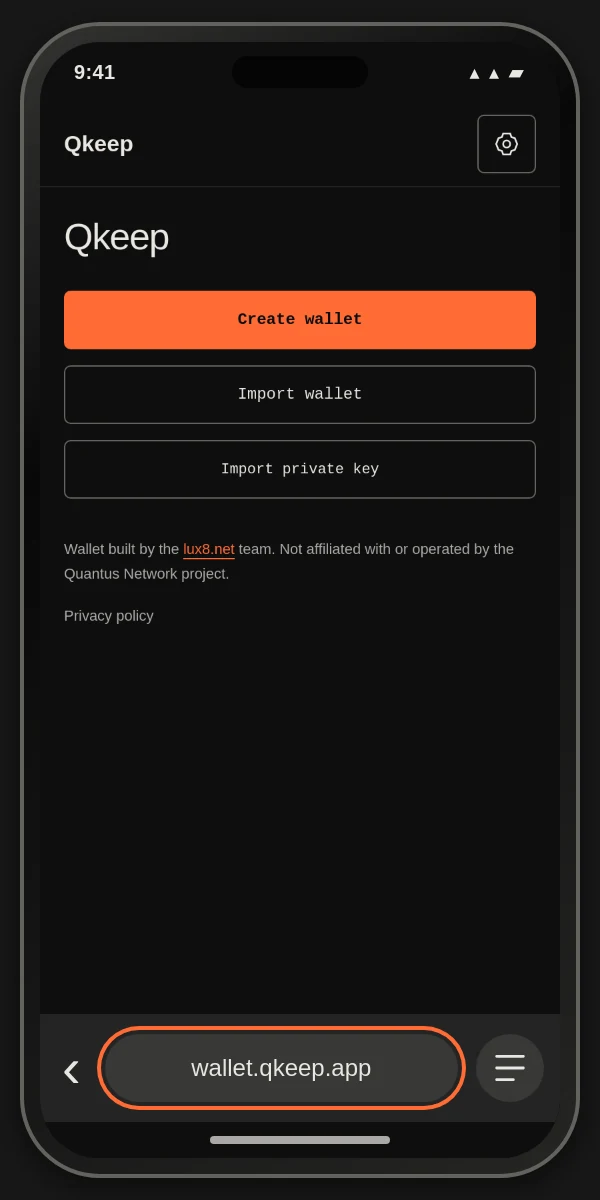
Start at wallet.qkeep.app in Safari. Find Share
In the compact layout, open the menu beside the address bar, then tap Share. Apple calls this Page Menu in iOS 27 and More (…) in iOS 26.
In the older layout, or with Bottom or Top tabs, tap the Share icon in the bottom toolbar: a square with an arrow pointing up.
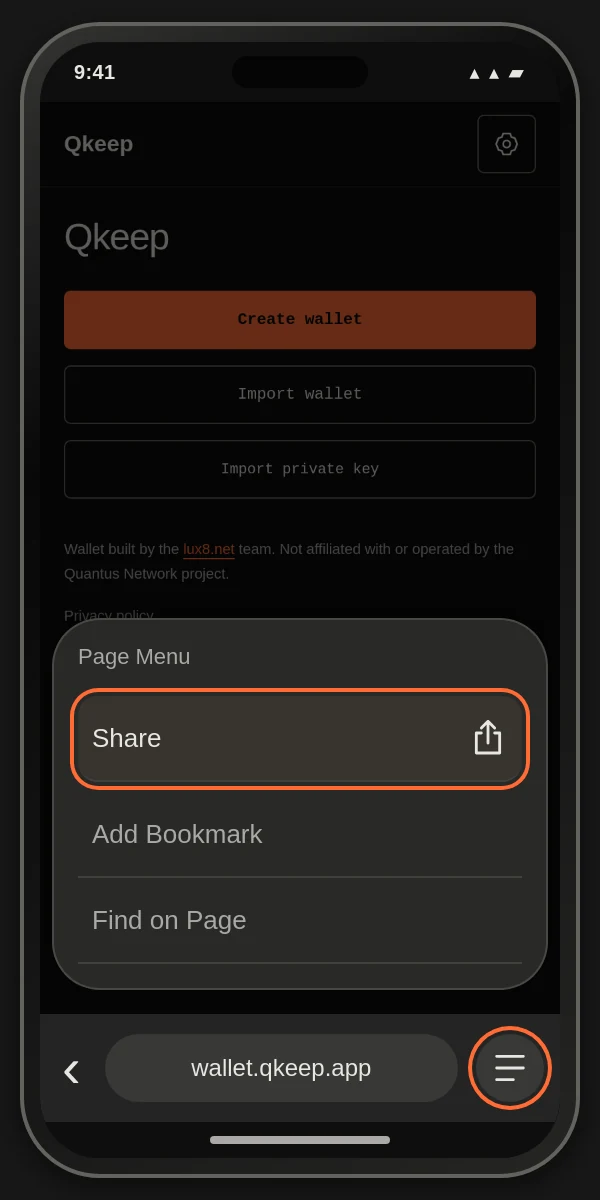
Open the page menu, then choose Share. Add it to your Home Screen
Scroll through the sharing options and tap Add to Home Screen. If a View More option appears, expand it first.
Still missing? At the bottom, open Edit Actions and add Add to Home Screen.
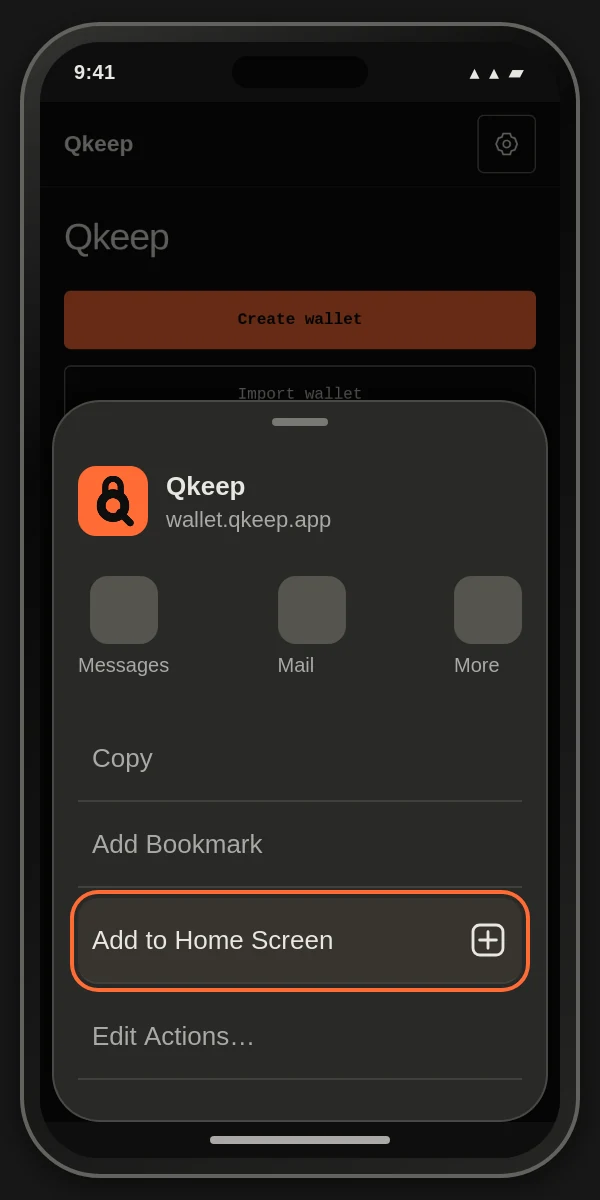
The option may be farther down the list. Choose the app experience
Leave Open as Web App on if shown. Set the name to Qkeep, then tap Add.
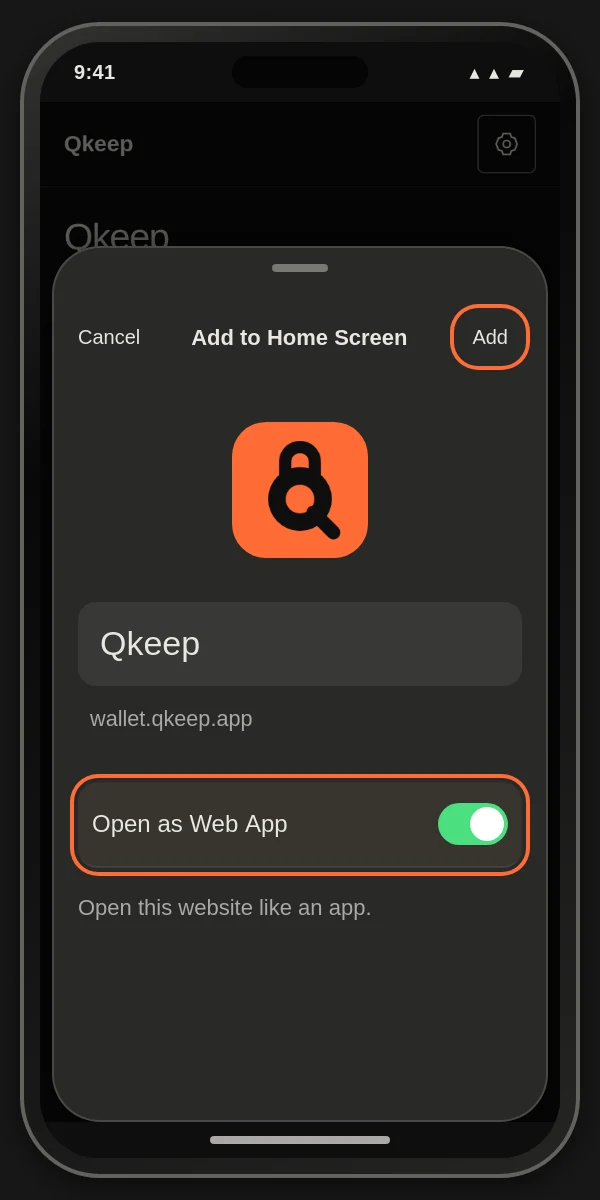
Keep Open as Web App on before tapping Add. Open from the Home Screen
Tap the new Qkeep icon. The wallet opens full screen, without Safari's address bar or toolbar.
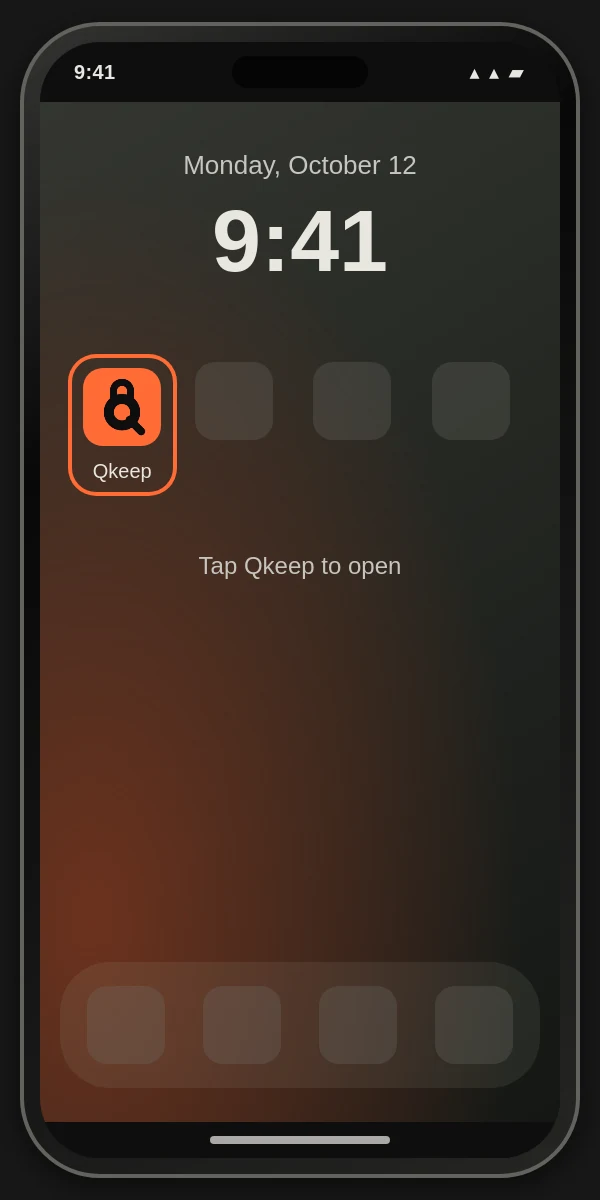
Use this icon to return to your wallet. Create or restore your wallet
Choose Create wallet for a new 24-word seed, or Import wallet to restore an existing recovery phrase. Choose a password to encrypt this copy on your device.
Already use Qkeep in Safari? The Home Screen app has separate storage. Choose Import wallet to use the same accounts. Read the Quantus account restore guide, including passphrases and private-key backups.
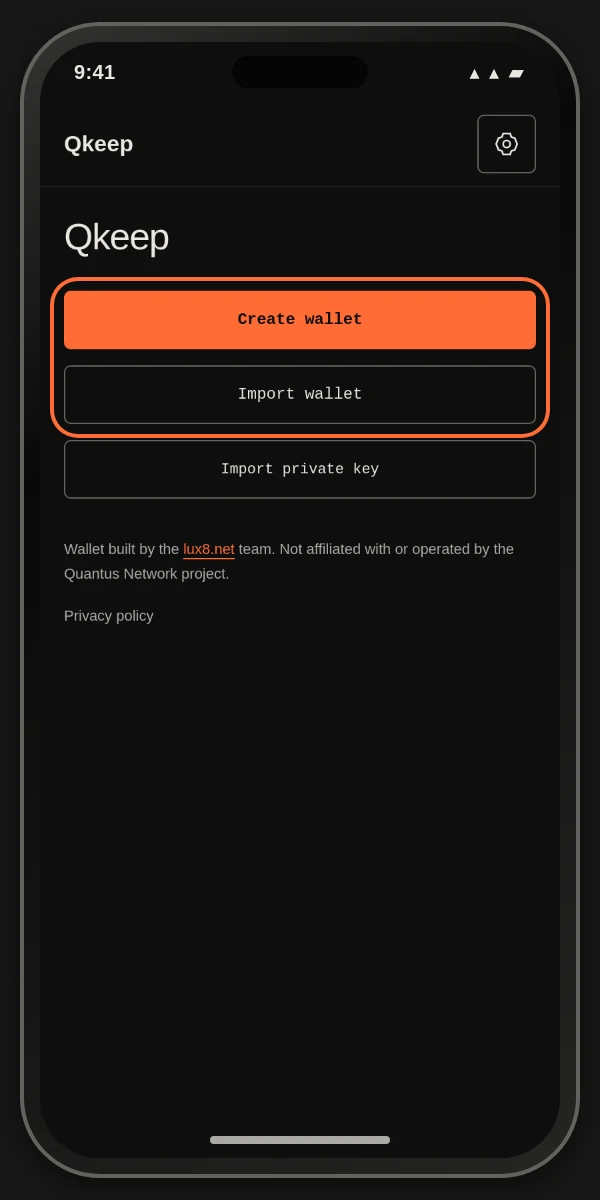
An existing wallet starts with Import wallet. Optional: enable Face ID
After unlocking with your password, open Settings using the gear icon. Choose Device unlock, then Enable Face ID / Touch ID.
Follow the device prompt and Qkeep's confirmation step. This option needs a compatible platform passkey with PRF support. If it is unavailable, keep using your password.
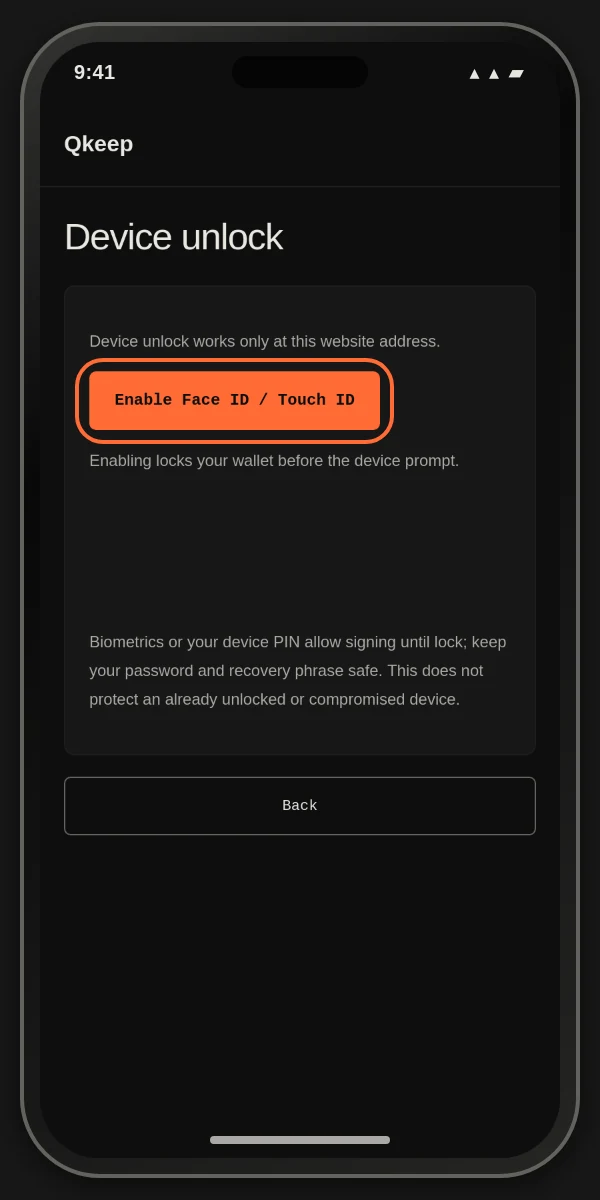
Device unlock is optional. Keep your password and seed backup.
On iPad
Open the same address in Safari and look for Share at the top. Choose View More if shown, then Add to Home Screen. Keep Open as Web App on and tap Add. The icon is added to that iPad.
Using Chrome on iPhone or iPad
Chrome also supports this. Open wallet.qkeep.app, tap Share to the right of the address bar, then Add to Home Screen. Check the details and tap Add. See Chrome's iPhone instructions. The steps above show Safari.
Keep your way back
Write down your 24-word recovery phrase and keep it offline. Anyone with it can control those accounts. Never send it to support, including the Qkeep or Quantus teams.
A password or Face ID unlocks this local wallet; neither replaces a seed backup. Keep any BIP39 passphrase too. Accounts imported from a private key need that key's separate backup.
Qkeep locks after five minutes of inactivity or five minutes in the background. A screen showing a seed locks immediately when you leave the app.
Instructions checked
Checked on 12 October 2026 against Apple's iPhone web app guide, iOS 26 instructions and iPad Home Screen instructions. WebKit explains the separate storage; MDN describes removing a web app.
Questions
Is there a Qkeep App Store app?
No. Install the web wallet through Safari: open wallet.qkeep.app, choose Share and Add to Home Screen, keep Open as Web App on if shown, then tap Add.
Does the Home Screen app share my wallet with Safari?
No. WebKit does not copy local storage into a new Home Screen web app or keep its data shared with Safari. Open Qkeep from its new icon and choose Import wallet to restore your recovery phrase. Include your original passphrase if you used one; imported private keys need their own backups.
What happens if I delete the Qkeep icon?
Deleting the Home Screen web app removes the installed app. Do not rely on adding it again to restore your local wallet: Apple does not document a guarantee that its data survives deletion. Back up first. If the local wallet is lost, restore from your recovery phrase and any original passphrase, or the separate backup for an imported private key. Qkeep cannot recover it for you.
Does Face ID work?
On supported devices, yes. Qkeep needs a platform passkey with the PRF extension, and checks actual support during setup. Open Settings, Device unlock, then Enable Face ID / Touch ID. Your iPhone may offer its passcode instead. If setup is unavailable or fails, use your wallet password. A passkey does not replace your recovery phrase backup.